
Meet your workspace
A short welcome tour introduces the platform and helps your team find its way. Replay it any time from the sidebar.
Bring your company, materials and battery models into one clear workspace. Meet the new Teksus ERP for Windows.
Download for WindowsFor authorized Teksus accounts. Includes the runtime; no separate .NET installation is needed.
A short welcome tour introduces the platform and helps your team find its way. Replay it any time from the sidebar.
Add company details and assembly sites through guided forms. Enter the real business details when you are ready.
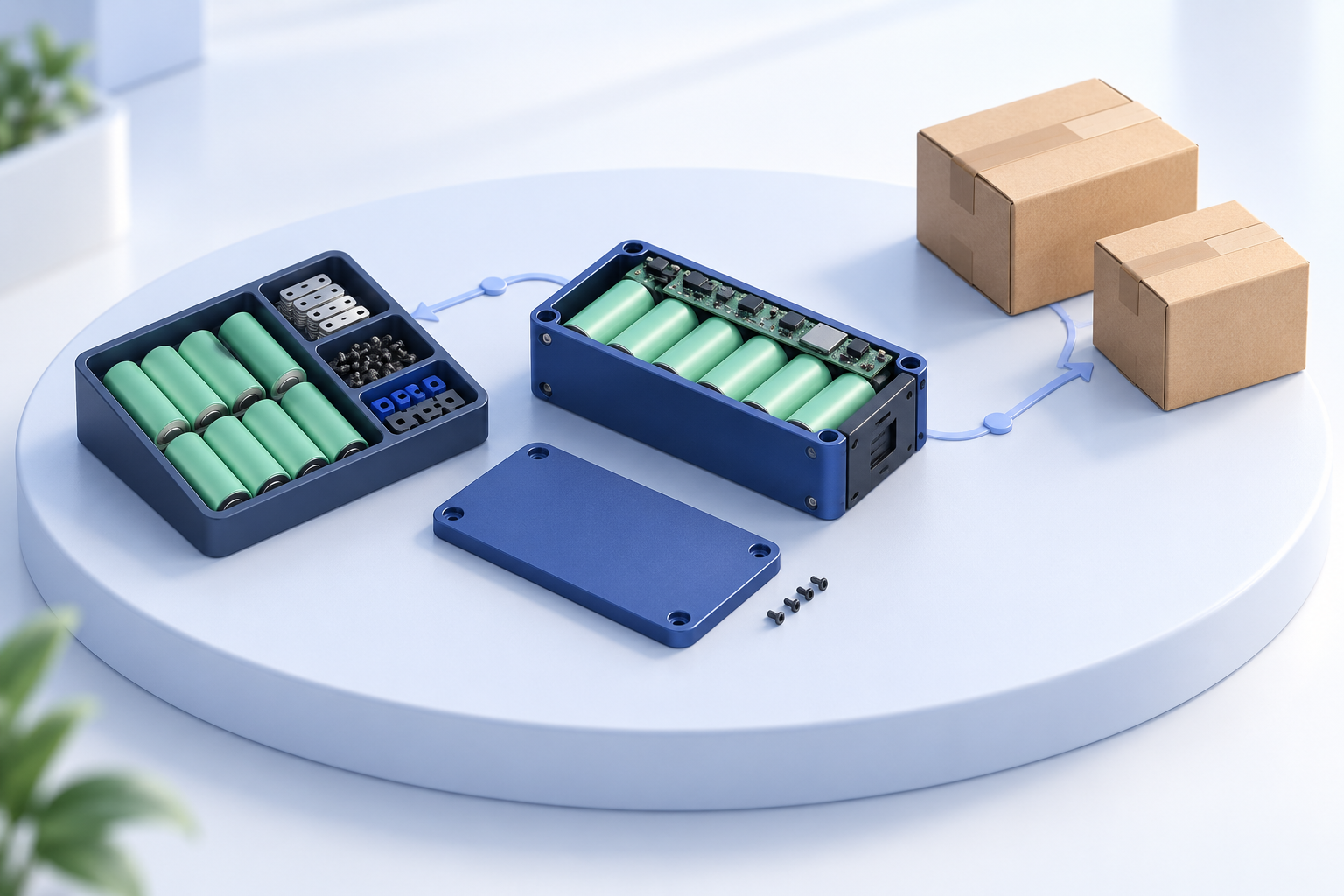
Organize materials and battery models, then prepare each model’s bill of materials: its components and quantities.
The installer adds Teksus ERP to your Start menu and desktop. It installs for your Windows account and keeps your business data on the connected server.
Installer: Teksus-ERP-Setup-2026.10.9.1.exe
SHA-256: 10c6faeb04e41ff33d8bdef16ceb5bbc21b4d9d45d53ecfd36aa946ed911f59e
Download checksum · Release details. The checksum verifies the downloaded bytes. Authenticode publisher signing is still pending.
This release is connected to Teksus Power Solutions LLP. Anyone your company administrator has added under People can sign in with their mobile number, and sees only what their roles allow. If your number has not been added yet, ask your company administrator.
Company administrators then open People and choose “Confirm with Google”. After verifying their mobile number, they select their own Google account to link it. No Google email is entered by the person adding them.
Download each new release from this page and run its installer. The shortcuts will open that version. There is no automatic updater yet. Remove the current version through Windows Settings → Apps → Installed apps. Uninstalling the app does not delete your business data on the server.